

Using the Web UI
Guide on how to use the LlamaExtract web interface, including creating extraction configurations, defining schemas, and running extractions.
To get started, head to cloud.llamaindex.ai. Login with the method of your choice.
We support login using OAuth 2.0 (Google, Github, Microsoft) and Email.
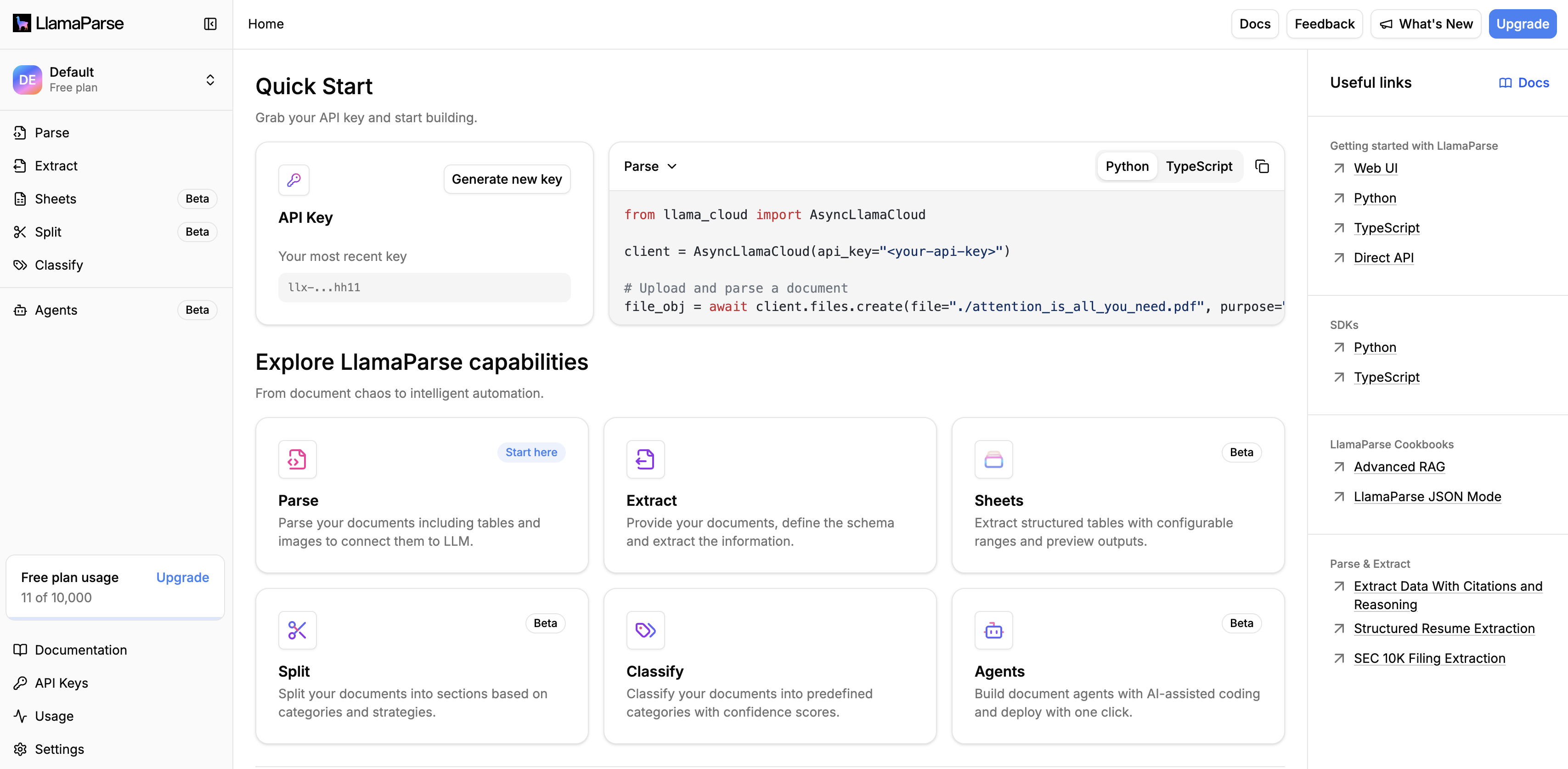
You should now see our welcome screen.
Creating an Extraction Configuration
Section titled “Creating an Extraction Configuration”An Extraction Configuration is a reusable configuration for extracting data from a specific type of content. This includes the schema you want to extract and other settings that affect the extraction process.
To get to extraction, click “Extraction (beta)” on the homepage or in the sidebar.
You will now have an option to create a new Extraction Configuration or see existing ones if previously created. Give a name to your configuration that does not conflict with existing ones and click “Create”.
Defining the Extraction Schema
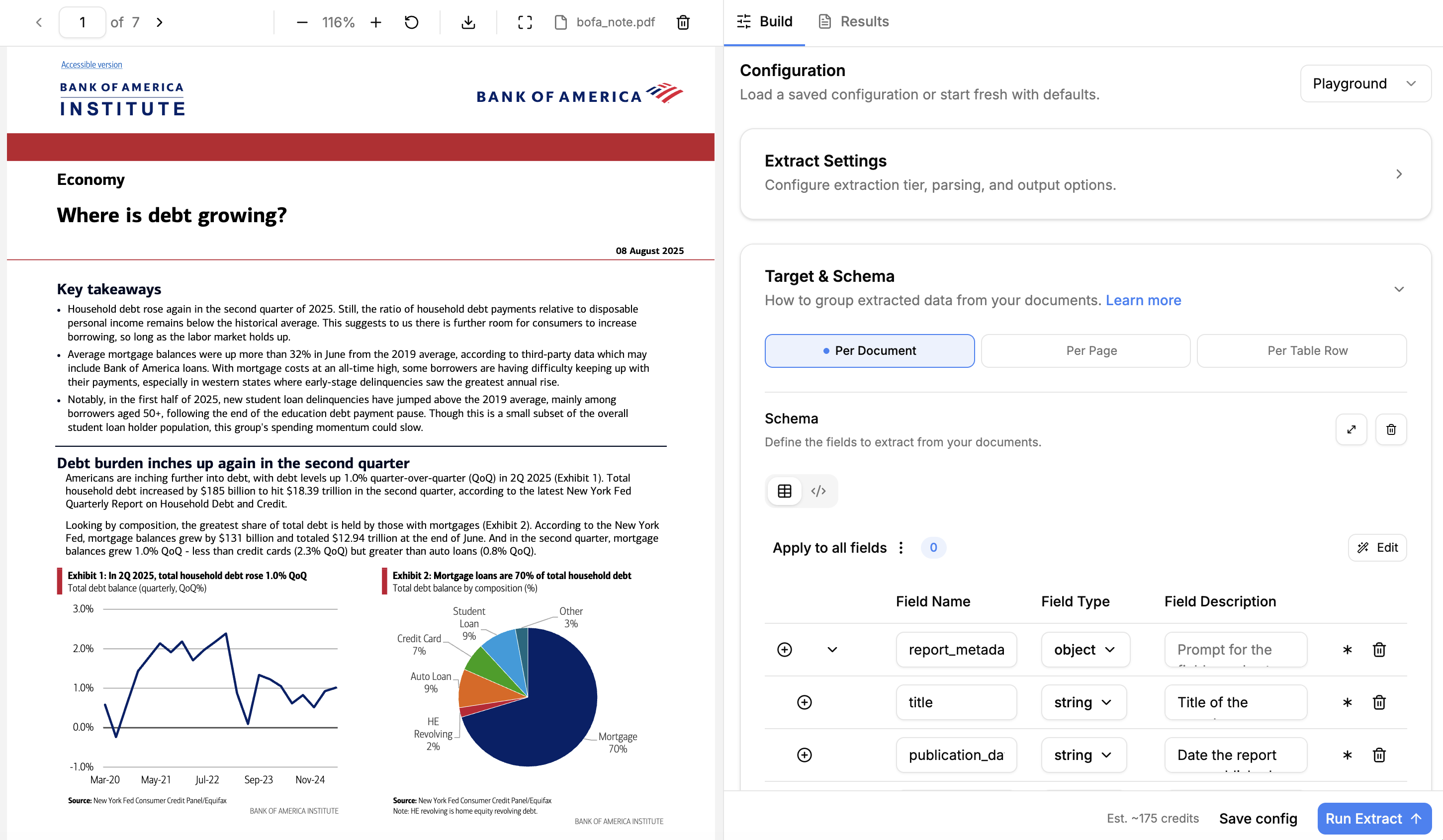
Section titled “Defining the Extraction Schema”The schema is the core of your extraction configuration. It defines the structure of the data you want to extract. We recommend starting with a simple schema and then iteratively improving it.
Using the Schema Builder
Section titled “Using the Schema Builder”The simplest way to define a schema is to use the Schema Builder. The Schema Builder supports a subset of the allowable JSON schema specification but it is sufficient for a wide range of use cases. e.g. the Schema Builder allows for defining nested objects and arrays.
To get a sense for how a complex schema can be defined, you can use one of the pre-defined templates for extraction. Refer to Schema Design Tips for tips on designing a schema for your use case.
Click on the “Template” dropdown and select the Technical Resume template:
Notice how location is a nested object within the Basics section.
Using the Raw Editor
Section titled “Using the Raw Editor”There are also cases where the Schema Builder is not sufficient (e.g. Union and Enum types are not supported in the Schema Builder), or you already have a JSON schema that you want to use. In these cases, you can simply paste your schema into the Raw Editor.
Saving the Extraction Configuration
Section titled “Saving the Extraction Configuration”To save your configuration, click the “Save config” button. This saves the schema and settings so you can reference them by ID in the SDK.
Unsaved changes are only used when running extractions with the “Run extract” button in the playground.
Loading a pre-saved configuration
Section titled “Loading a pre-saved configuration”When you save a configuration, it’s stored under the name you provide.
- To load a pre-saved config, open the Extraction page and use the Configuration dropdown to choose a saved configuration. The schema and options will load into the editor.
- You can switch between different extraction setups (for example, “Invoice Extract” vs. “Resume Extract”) without redefining schema and options each time.
Restoring a previous configuration
Section titled “Restoring a previous configuration”Every extraction job stores the configuration that was used. To reuse a schema or settings from a previous run, go to the Extract history page, click on a completed job to view its results, and load its configuration into the editor.
Other Settings
Section titled “Other Settings”Refer to Configuring Extract for other Extraction Configuration options that affect the extraction process.
Running an Extraction
Section titled “Running an Extraction”Once you are satisfied with your schema, upload a document and click “Run extract”. This can take a few seconds to minutes depending on the size of the document and the complexity of the schema.
Once the extraction is complete, you should be able to see the results in the middle pane.:
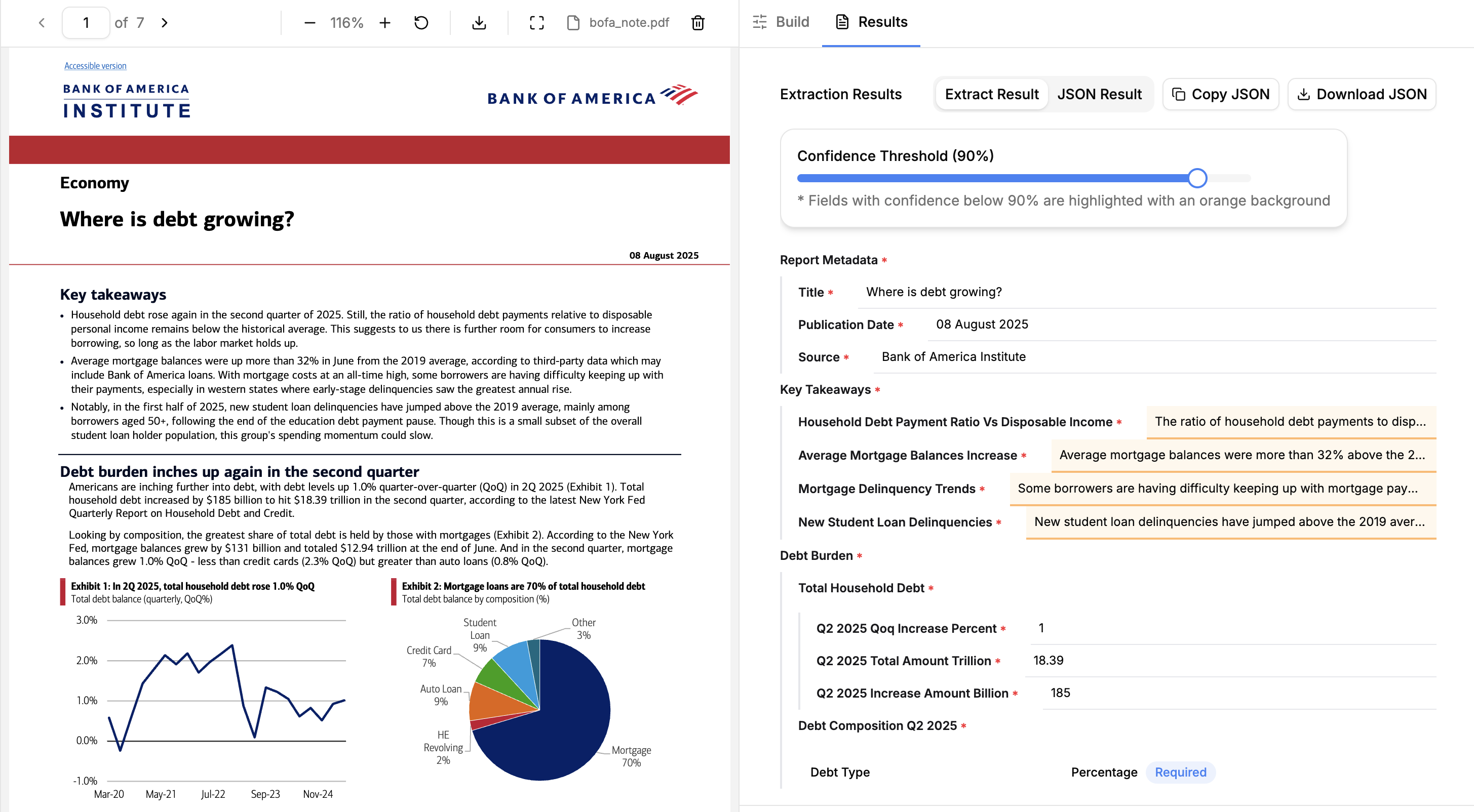
The first run on a given file will take additional time since we parse and cache the document. This might be noticeable for larger documents. Subsequent schema iteration should be faster.
Viewing Past Extractions
Section titled “Viewing Past Extractions”You can view past extraction jobs by clicking the “History” button. This shows all jobs with their status, creation time, and results.
Next steps
Section titled “Next steps”The web UI makes it easy to test and iterate on your schema. Once you’re happy with a schema, you can scalably run extractions via the SDK.