

Getting Started
Quick start guide for Parse, covering API key generation and document parsing using Python, TypeScript, Go, Java, the CLI, the REST API, or the Web UI.
Get your first parse job running in under a minute—whether you prefer Python, TypeScript, Go, Java, the CLI, the REST API, or the Web UI.
Before you begin
Section titled “Before you begin”You’ll need a LlamaCloud API key. Get your API key →
Set it as an environment variable so the SDKs pick it up automatically:
export LLAMA_CLOUD_API_KEY="llx-..."Your first parse job in 60 seconds
Section titled “Your first parse job in 60 seconds”Download a sample document, the Attention Is All You Need paper:
curl -fL -o attention_is_all_you_need.pdf https://arxiv.org/pdf/1706.03762Install the SDK:
pip install "llama-cloud>=2.8"Parse a document:
from llama_cloud import LlamaCloud
client = LlamaCloud()  # reads LLAMA_CLOUD_API_KEY from the environment
# Upload and parse a documentfile = client.files.create(file="./attention_is_all_you_need.pdf", purpose="parse")result = client.parsing.parse(    file_id=file.id,    tier="agentic",    version="latest",    expand=["markdown"],)
# Print the markdown for the first pageprint(result.markdown.pages[0].markdown)
That’s it. The SDK handles job polling for you—client.parsing.parse() blocks until the job finishes and returns the full result.
Prefer async? Swap LlamaCloud for AsyncLlamaCloud and await the calls:
from llama_cloud import AsyncLlamaCloudimport asyncio
async def main():    client = AsyncLlamaCloud()    file = await client.files.create(file="./attention_is_all_you_need.pdf", purpose="parse")    result = await client.parsing.parse(file_id=file.id, tier="agentic", version="latest", expand=["markdown"])    print(result.markdown.pages[0].markdown)
asyncio.run(main())
Configure your parse job
Section titled “Configure your parse job”The snippet above uses defaults. When you’re ready to tune the output, add input_options, output_options, or processing_options:
result = client.parsing.parse( file_id=file.id, tier="agentic", version="latest", output_options={ "markdown": {"tables": {"output_tables_as_markdown": True}}, "images_to_save": ["screenshot"], }, processing_options={ "ocr_parameters": {"languages": ["en"]}, }, expand=["text", "markdown", "items", "images_content_metadata"],)Each group has a dedicated reference page:
- Input Options — page ranges, crop boxes, file-type-specific controls, and cache behavior
- Output Options — markdown styling, spatial text, screenshots, tables-as-spreadsheet, and more
- Processing Options — OCR languages, ignore rules, chart parsing, cost optimizer
- Retrieving Results — every
expandvalue and how to control what comes back
Install the SDK:
npm install @llamaindex/llama-cloudCreate a parse.ts file:
import LlamaCloud from '@llamaindex/llama-cloud';import fs from 'fs';
const client = new LlamaCloud(); // reads LLAMA_CLOUD_API_KEY from the environment
// Upload and parse a documentconst file = await client.files.create({  file: fs.createReadStream('./attention_is_all_you_need.pdf'),  purpose: 'parse',});
const result = await client.parsing.parse({  file_id: file.id,  tier: 'agentic',  version: 'latest',  expand: ['markdown'],});
// Print the markdown for the first pageconsole.log(result.markdown.pages[0].markdown);
Run it:
npx tsx parse.tsThe SDK handles job polling for you—client.parsing.parse() awaits until the job finishes and returns the full result.
Configure your parse job
Section titled “Configure your parse job”Pass input_options, output_options, or processing_options to tune the output:
const result = await client.parsing.parse({ file_id: file.id, tier: 'agentic', version: 'latest', output_options: { markdown: { tables: { output_tables_as_markdown: true } }, images_to_save: ['screenshot'], }, processing_options: { ocr_parameters: { languages: ['en'] }, }, expand: ['text', 'markdown', 'items', 'images_content_metadata'],});See the dedicated reference pages for the full set of options:
- Input Options
- Output Options
- Processing Options
- Retrieving Results — every
expandvalue and how to control what comes back
Install the SDK:
go get github.com/run-llama/llama-parse-goCreate a main.go file:
package main
import (  "context"  "fmt"  "log"  "os"  "time"
  llamacloud "github.com/run-llama/llama-parse-go")
func main() {  ctx := context.Background()  client := llamacloud.NewClient() // reads LLAMA_CLOUD_API_KEY from the environment
  f, err := os.Open("./attention_is_all_you_need.pdf")  if err != nil {    log.Fatal(err)  }  defer f.Close()
  // Upload and parse a document  file, err := client.Files.New(ctx, llamacloud.FileNewParams{    File:    f,    Purpose: "parse",  })  if err != nil {    log.Fatal(err)  }
  job, err := client.Parsing.New(ctx, llamacloud.ParsingNewParams{    FileID:  llamacloud.String(file.ID),    Tier:    llamacloud.ParsingNewParamsTierAgentic,    Version: llamacloud.ParsingNewParamsVersionLatest,  })  if err != nil {    log.Fatal(err)  }
  // Poll until the job reaches a terminal status  getParams := llamacloud.ParsingGetParams{Expand: []string{"markdown"}}  result, err := client.Parsing.Get(ctx, job.ID, getParams)  if err != nil {    log.Fatal(err)  }  for result.Job.Status != "COMPLETED" && result.Job.Status != "FAILED" && result.Job.Status != "CANCELLED" {    time.Sleep(2 * time.Second)    result, err = client.Parsing.Get(ctx, job.ID, getParams)    if err != nil {      log.Fatal(err)    }  }
  if result.Job.Status != "COMPLETED" {    log.Fatalf("parse ended as %s", result.Job.Status)  }  if len(result.Markdown.Pages) == 0 {    log.Fatal("parse completed with no markdown pages")  }
  // Print the markdown for the first page  fmt.Println(result.Markdown.Pages[0].Markdown)}
Run it:
go run main.goConfigure your parse job
Section titled “Configure your parse job”The snippet above uses defaults. When you’re ready to tune the output, add InputOptions, OutputOptions, or ProcessingOptions:
job, err := client.Parsing.New(ctx, llamacloud.ParsingNewParams{ FileID: llamacloud.String(file.ID), Tier: llamacloud.ParsingNewParamsTierAgentic, Version: llamacloud.ParsingNewParamsVersionLatest, OutputOptions: llamacloud.ParsingNewParamsOutputOptions{ Markdown: llamacloud.ParsingNewParamsOutputOptionsMarkdown{ Tables: llamacloud.ParsingNewParamsOutputOptionsMarkdownTables{ OutputTablesAsMarkdown: llamacloud.Bool(true), }, }, ImagesToSave: []string{"screenshot"}, }, ProcessingOptions: llamacloud.ParsingNewParamsProcessingOptions{ OcrParameters: llamacloud.ParsingNewParamsProcessingOptionsOcrParameters{ Languages: []llamacloud.ParsingLanguages{llamacloud.ParsingLanguagesEn}, }, },})Request the fields you want back when you fetch the result:
result, err := client.Parsing.Get(ctx, job.ID, llamacloud.ParsingGetParams{ Expand: []string{"text", "markdown", "items", "images_content_metadata"},})Each group has a dedicated reference page:
- Input Options — page ranges, crop boxes, file-type-specific controls, and cache behavior
- Output Options — markdown styling, spatial text, screenshots, tables-as-spreadsheet, and more
- Processing Options — OCR languages, ignore rules, chart parsing, cost optimizer
- Retrieving Results — every
expandvalue and how to control what comes back
Add the SDK to your build:
implementation("ai.llamaindex:llama-cloud:1.3.0")Parse a document:
import ai.llamaindex.llamacloud.client.LlamaCloudClient;import ai.llamaindex.llamacloud.client.okhttp.LlamaCloudOkHttpClient;import ai.llamaindex.llamacloud.models.files.FileCreateParams;import ai.llamaindex.llamacloud.models.files.FileCreateResponse;import ai.llamaindex.llamacloud.models.parsing.ParsingCreateParams;import ai.llamaindex.llamacloud.models.parsing.ParsingCreateResponse;import ai.llamaindex.llamacloud.models.parsing.ParsingGetParams;import ai.llamaindex.llamacloud.models.parsing.ParsingGetResponse;import java.nio.file.Paths;
public class ParseExample {    public static void main(String[] args) throws Exception {        // reads LLAMA_CLOUD_API_KEY from the environment        LlamaCloudClient client = LlamaCloudOkHttpClient.fromEnv();
        // Upload and parse a document        FileCreateResponse file = client.files().create(FileCreateParams.builder()                .file(Paths.get("./attention_is_all_you_need.pdf"))                .purpose("parse")                .build());
        ParsingCreateResponse job = client.parsing().create(ParsingCreateParams.builder()                .fileId(file.id())                .tier(ParsingCreateParams.Tier.AGENTIC)                .version(ParsingCreateParams.Version.LATEST)                .build());
        // Poll until the job reaches a terminal status        ParsingGetParams getParams = ParsingGetParams.builder()                .jobId(job.id())                .addExpand("markdown")                .build();
        ParsingGetResponse result = client.parsing().get(getParams);        while (!result.job().status().equals(ParsingGetResponse.Job.Status.COMPLETED)                && !result.job().status().equals(ParsingGetResponse.Job.Status.FAILED)                && !result.job().status().equals(ParsingGetResponse.Job.Status.CANCELLED)) {            Thread.sleep(2000);            result = client.parsing().get(getParams);        }
        if (!result.job().status().equals(ParsingGetResponse.Job.Status.COMPLETED)) {            throw new RuntimeException("parse ended as " + result.job().status());        }
        // Print the markdown for the first page        System.out.println(result.markdown().get().pages().get(0).asMarkdownResult().markdown());    }}
Configure your parse job
Section titled “Configure your parse job”Pass inputOptions, outputOptions, or processingOptions to tune the output:
ParsingCreateResponse job = client.parsing().create(ParsingCreateParams.builder() .fileId(file.id()) .tier(ParsingCreateParams.Tier.AGENTIC) .version(ParsingCreateParams.Version.LATEST) .outputOptions(ParsingCreateParams.OutputOptions.builder() .markdown(ParsingCreateParams.OutputOptions.Markdown.builder() .tables(ParsingCreateParams.OutputOptions.Markdown.Tables.builder() .outputTablesAsMarkdown(true) .build()) .build()) .addImagesToSave(ParsingCreateParams.OutputOptions.ImagesToSave.SCREENSHOT) .build()) .processingOptions(ParsingCreateParams.ProcessingOptions.builder() .ocrParameters(ParsingCreateParams.ProcessingOptions.OcrParameters.builder() .addLanguage(ParsingLanguages.EN) .build()) .build()) .build());Request the fields you want back when you fetch the result:
ParsingGetResponse result = client.parsing().get(ParsingGetParams.builder() .jobId(job.id()) .addExpand("text") .addExpand("markdown") .addExpand("items") .addExpand("images_content_metadata") .build());See the dedicated reference pages for the full set of options:
- Input Options
- Output Options
- Processing Options
- Retrieving Results — every
expandvalue and how to control what comes back
Install the CLI:
go install github.com/run-llama/llama-parse-cli/cmd/llp@latestllp reads LLAMA_CLOUD_API_KEY from the environment (or pass --api-key). Parse a document:
# Upload the documentFILE_ID=$(llp files create \  --file ./attention_is_all_you_need.pdf \  --purpose parse | jq -r '.id')
# Start a parse jobJOB_ID=$(llp parsing create \  --file-id "$FILE_ID" \  --tier agentic \  --version latest | jq -r '.id')
# Poll until the job reaches a terminal statuswhile true; do  STATUS=$(llp parsing get --job-id "$JOB_ID" | jq -er '.job.status') || break  case "$STATUS" in COMPLETED|FAILED|CANCELLED) break ;; esac  sleep 2done
# Print the markdown for the first pagellp parsing get --job-id "$JOB_ID" --expand markdown \  | jq -r '.markdown.pages[0].markdown'
Configure your parse job
Section titled “Configure your parse job”Every body field has a kebab-case flag. Nested objects take a YAML-ish blob, either on the top-level flag or on an inner flag:
llp parsing create \ --file-id "$FILE_ID" \ --tier agentic \ --version latest \ --output-options.markdown '{tables: {output_tables_as_markdown: true}}' \ --output-options.images-to-save '[screenshot]' \ --processing-options.ocr-parameters '{languages: [en]}'Repeat --expand to request more fields on the result:
llp parsing get --job-id "$JOB_ID" \ --expand text \ --expand markdown \ --expand items \ --expand images_content_metadataSee the dedicated reference pages for the full set of options:
- Input Options
- Output Options
- Processing Options
- Retrieving Results — every
expandvalue and how to control what comes back
If you’d prefer to skip the SDKs, the REST API lets you parse from any environment. Unlike the SDKs, the raw API is asynchronous: you upload a file, kick off a parse job, then poll for the result.
1. Upload a file
Section titled “1. Upload a file”curl -X POST \ https://api.cloud.llamaindex.ai/api/v1/beta/files \ -H 'Accept: application/json' \ -H "Authorization: Bearer $LLAMA_CLOUD_API_KEY" \ -F 'purpose=parse' \ -F 'file=@attention_is_all_you_need.pdf;type=application/pdf'Grab the id from the response:
{ "id": "cafe1337-e0dd-4762-b5f5-769fef112558"}2. Start a parse job
Section titled “2. Start a parse job”curl -X POST \ 'https://api.cloud.llamaindex.ai/api/v2/parse' \ -H 'Accept: application/json' \ -H 'Content-Type: application/json' \ -H "Authorization: Bearer $LLAMA_CLOUD_API_KEY" \ --data '{ "file_id": "<file_id>", "tier": "agentic", "version": "latest" }'You’ll get a job_id back:
{ "id": "c0defee1-76a0-42c3-bbed-094e4566b762", "status": "PENDING"}3. Poll for the result
Section titled “3. Poll for the result”Call the result endpoint with your job_id. Keep polling until you see COMPLETED, then use expand to request the fields you want:
curl -X GET \ 'https://api.cloud.llamaindex.ai/api/v2/parse/<job_id>?expand=markdown' \ -H 'Accept: application/json' \ -H "Authorization: Bearer $LLAMA_CLOUD_API_KEY"See Retrieving Results for every available expand value.
If you’re non-technical or just want to sandbox Parse before writing any code, the Web UI is the fastest path.
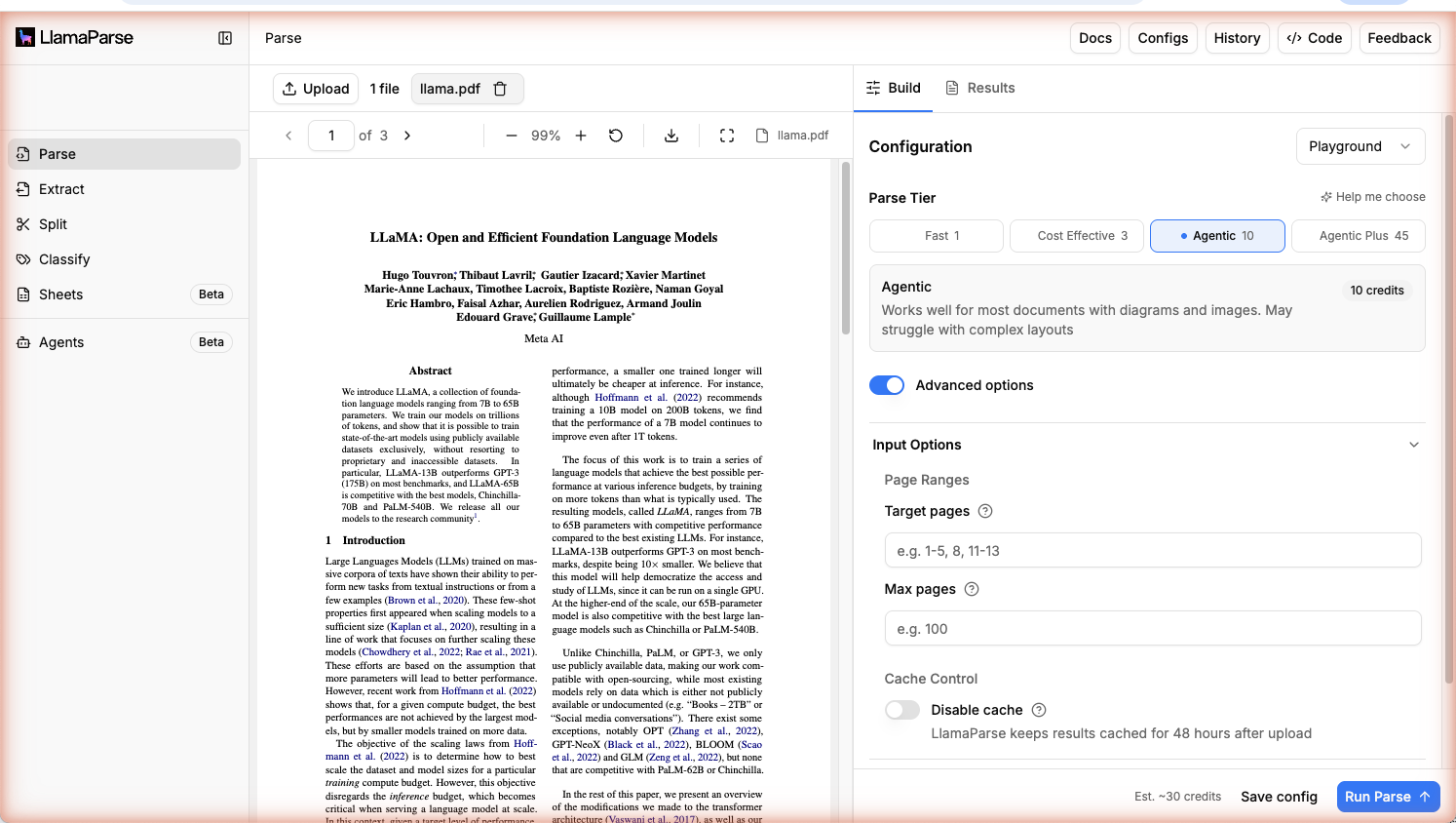
- Go to cloud.llamaindex.ai/parse
- Pick a Tier from Recommended Settings, or switch to Advanced Settings to customize
- Upload your document (or pick one of the sample use cases to try Parse without uploading anything)
- Click Run Parse and view the results directly in the browser
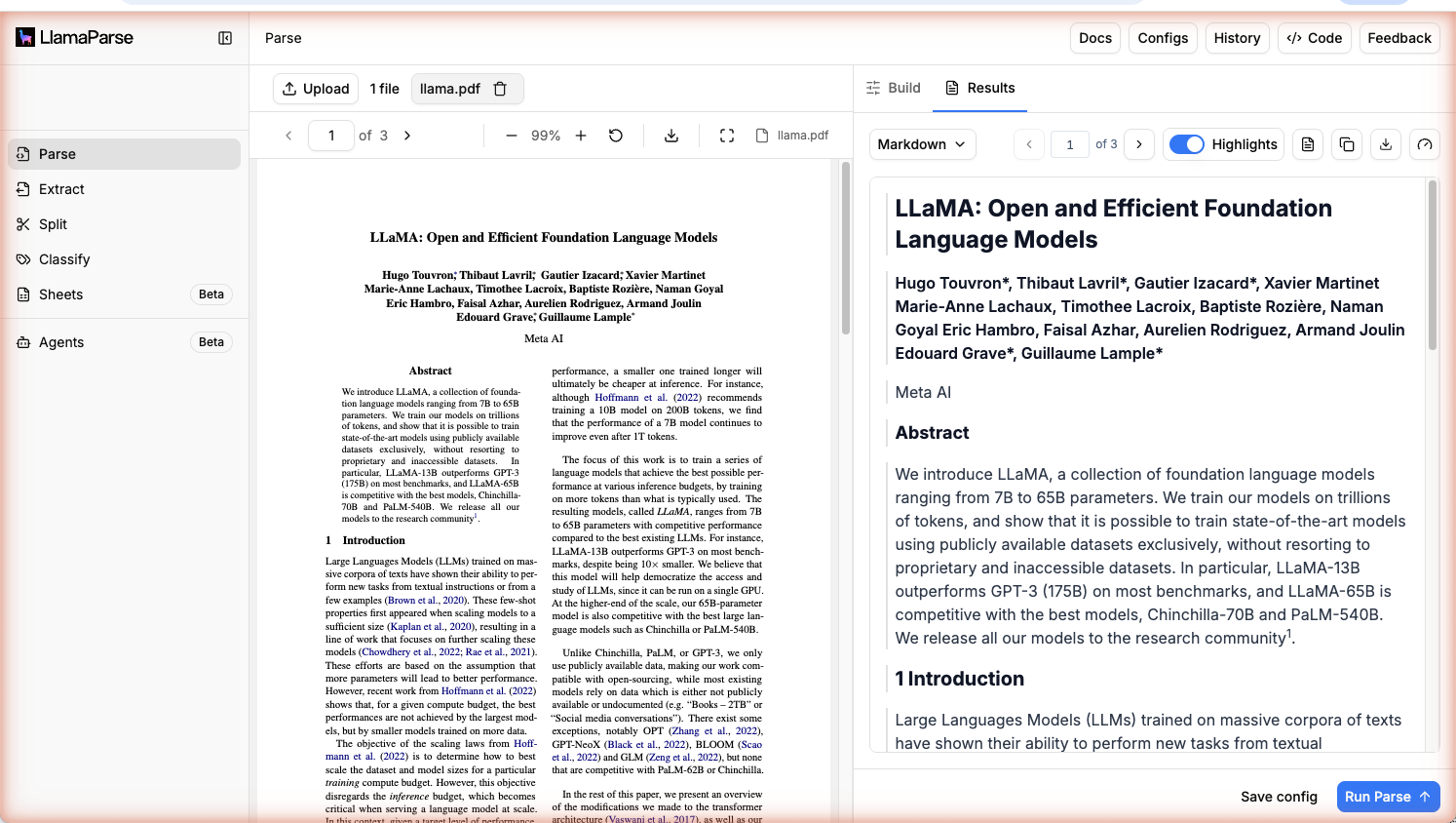
Choosing a tier
Section titled “Choosing a tier”Parse offers four tiers:
- Agentic Plus — state-of-the-art models for maximum accuracy on the hardest documents (complex tables, dense charts, multi-column layouts).
- Agentic — advanced parsing agents for visually rich documents; a strong default for most workloads.
- Cost Effective — balanced performance and cost for text-heavy documents with minimal visual structure.
- Fast — the lowest-latency, lowest-cost tier for plain-text documents at high volume. Returns text and spatial text only — does not support markdown output.
Alternative: use a coding agent
Section titled “Alternative: use a coding agent”If you’re already using Claude Code, Cursor, or another coding agent, you can skip the SDK entirely. Install the Parse agent skill and your agent can parse documents on the fly:
npx skills add run-llama/llamaparse-agent-skills --skill llamaparseThen just ask your agent things like:
- “Parse this PDF and extract the text as markdown.”
- “Extract every table from each invoice in
./invoicesand save them as CSVs.” - “Parse this financial report with cost optimizer enabled.”
The agent writes the SDK calls for you. It picks the right tier, configures options, and saves output — without you needing to remember API details.
Requirements: Node 18+, LLAMA_CLOUD_API_KEY in the environment, and a coding agent that supports Vercel-style skills.
A second skill, liteparse, runs locally with no API key — best for plain text and simple layouts.
For both skills, the agent plugins that bundle them, and Codex setup, see
Skills and Plugins.
Next steps
Section titled “Next steps”- Choose the right tier → Tiers explains when to use Agentic Plus vs. Agentic vs. Cost Effective vs. Fast.
- Learn to configure options → Configuring Parse covers every knob — input, output, and processing options.
- Save money on long documents → Cost Optimizer routes each page to the right tier automatically.
- See real examples → Parse Examples — runnable tutorials for common use cases.
Resources
Section titled “Resources”- Pricing & credits
- Need structured data instead of markdown? Check out LlamaExtract.