

Parse Charts in PDFs and Analyze with Pandas
This tutorial shows how to parse a PDF with specialized chart parsing enabled, extract table data from a page that contains a chart, and run basic data science with pandas. We use the same 2024 Executive Summary PDF as in Parse a PDF & Interpret Outputs; the third page includes a chart that LlamaParse can turn into structured data.
1. Setup
Section titled “1. Setup”Install the LlamaParse SDK and pandas:
pip install llama-cloud>=1.0 pandasSet your API key and create a client:
import osfrom getpass import getpass
os.environ["LLAMA_CLOUD_API_KEY"] = getpass("Llama Cloud API Key: ")
from llama_cloud import AsyncLlamaCloud
client = AsyncLlamaCloud()2. Parse with Specialized Chart Parsing
Section titled “2. Parse with Specialized Chart Parsing”Specialized chart parsing tells LlamaParse to extract chart and graph data with higher fidelity. Enable it via processing_options and request the items view so you get structured tables (and figures) per page.
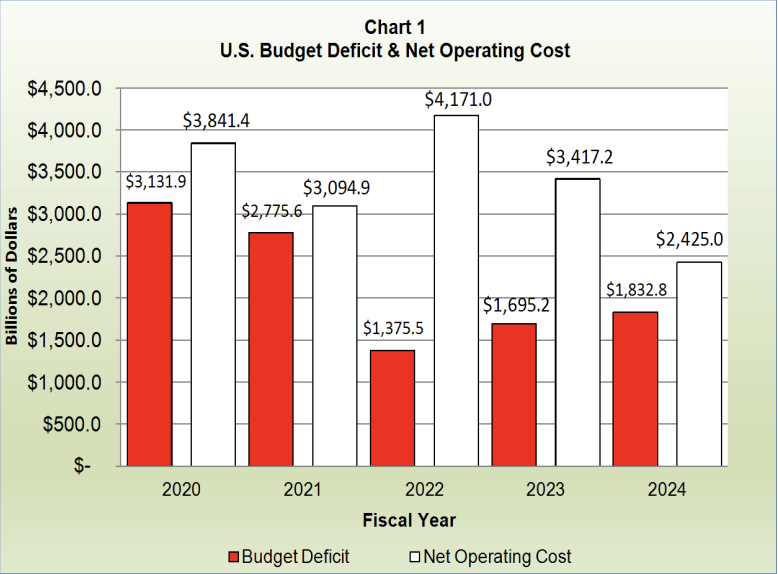
We parse the same executive summary PDF and expand items so we can pull tables from page 3, which contains the following chart:
# 1) Upload the filefile_obj = await client.files.create(    file="/content/executive-summary-2024.pdf",    purpose="parse",)
# 2) Create a parse job (Agentic Plus tier, latest version)result = await client.parsing.parse(    file_id=file_obj.id,    tier="agentic_plus",    version="latest",    processing_options={        "specialized_chart_parsing": "agentic_plus",    },    expand=["items"],)
3. Get Table Data from Page 3
Section titled “3. Get Table Data from Page 3”The third page of the PDF (index 2 in result.items.pages) contains a chart. With chart parsing, LlamaParse often represents the chart’s data as a table in the items tree. We collect the first table on that page and use its rows for pandas.
page_three = result.items.pages[2]
for item in page_three.items:  print(item)
tables = [item for item in page_three.items if getattr(item, "type", None) == "table" or hasattr(item, "rows")]if not tables:    raise ValueError("No table found on page 3. Check the PDF or try agentic_plus tier.")

table = tables[0]rows = table.rows
4. Load the Fiscal-Year Chart into Pandas
Section titled “4. Load the Fiscal-Year Chart into Pandas”The chart on this page is a grouped bar chart showing Budget Deficit and Net Operating Cost (both in billions of dollars) for fiscal years 2020–2024. We turn its table into a clean time-series DataFrame:
import pandas as pd
# First row as column names, rest as dataheader = rows[0]df = pd.DataFrame(rows[1:], columns=header)
money_cols = [    "Budget Deficit (Billions of Dollars)",    "Net Operating Cost (Billions of Dollars)",]
df["Fiscal Year"] = df["Fiscal Year"].astype(int)
print("DataFrame:")print(df)
DataFrame: Fiscal Year Budget Deficit (Billions of Dollars) \0 2020 $3,131.91 2021 $2,775.62 2022 $1,375.53 2023 $1,695.24 2024 $1,832.8
Net Operating Cost (Billions of Dollars)0 $3,841.41 $3,094.92 $4,171.03 $3,417.24 $2,425.05. Analyze Deficit vs. Net Operating Cost
Section titled “5. Analyze Deficit vs. Net Operating Cost”With the data cleaned, we can reproduce the key relationships described under the chart text.
1. Year-over-year changes in both series
df["Deficit YoY Change"] = df["Budget Deficit (Billions of Dollars)"].diff()df["Net Operating Cost YoY Change"] = df["Net Operating Cost (Billions of Dollars)"].diff()
print(df[["Fiscal Year",          "Budget Deficit (Billions of Dollars)",          "Net Operating Cost (Billions of Dollars)",          "Deficit YoY Change",          "Net Operating Cost YoY Change"]])
Fiscal Year Budget Deficit (Billions of Dollars) \0 2020 3131.91 2021 2775.62 2022 1375.53 2023 1695.24 2024 1832.8
Net Operating Cost (Billions of Dollars) Deficit YoY Change \0 3841.4 NaN1 3094.9 -356.32 4171.0 -1400.13 3417.2 319.74 2425.0 137.6
Net Operating Cost YoY Change0 NaN1 -746.52 1076.13 -753.8This highlights, for example, the sharp spike in net operating cost in 2022 and the decline through 2023–2024.
2. Gap between Net Operating Cost and Budget Deficit
df["Gap (Net Operating Cost - Deficit)"] = (    df["Net Operating Cost (Billions of Dollars)"]    - df["Budget Deficit (Billions of Dollars)"])
print("\nGap between Net Operating Cost and Budget Deficit (billions):")print(df[["Fiscal Year", "Gap (Net Operating Cost - Deficit)"]])
print("\nYear with largest gap:")print(df.loc[df["Gap (Net Operating Cost - Deficit)"].idxmax()])
print("\nYear with smallest gap:")print(df.loc[df["Gap (Net Operating Cost - Deficit)"].idxmin()])
Gap between Net Operating Cost and Budget Deficit (billions): Fiscal Year Gap (Net Operating Cost - Deficit)0 2020 709.51 2021 319.32 2022 2795.53 2023 1722.04 2024 592.2
Year with largest gap:Fiscal Year 2022.0Budget Deficit (Billions of Dollars) 1375.5Net Operating Cost (Billions of Dollars) 4171.0Deficit YoY Change -1400.1Net Operating Cost YoY Change 1076.1Gap (Net Operating Cost - Deficit) 2795.5Name: 2, dtype: float64
Year with smallest gap:Fiscal Year 2021.0Budget Deficit (Billions of Dollars) 2775.6Net Operating Cost (Billions of Dollars) 3094.9Deficit YoY Change -356.3Net Operating Cost YoY Change -746.5Gap (Net Operating Cost - Deficit) 319.3Name: 1, dtype: float64This reproduces the narrative that 2022 saw the largest divergence between the two metrics, while by 2024 the gap had narrowed significantly.
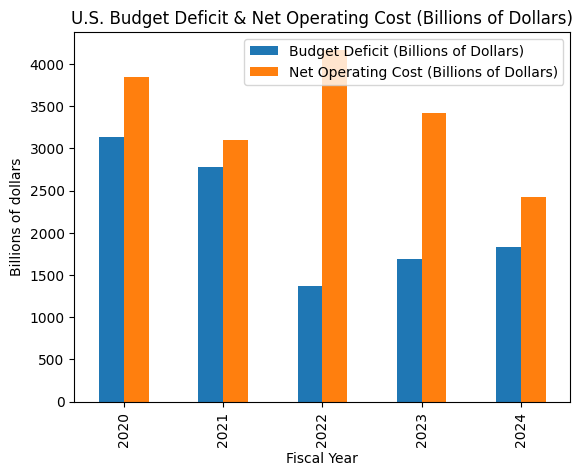
3. Quick visualization (optional)
ax = df.plot( x="Fiscal Year", y=[ "Budget Deficit (Billions of Dollars)", "Net Operating Cost (Billions of Dollars)", ], kind="bar", title="U.S. Budget Deficit & Net Operating Cost (Billions of Dollars)",)ax.set_ylabel("Billions of dollars")This bar chart closely mirrors Chart 1 in the PDF, but now backed by a DataFrame that you can further slice, aggregate, or feed into downstream analytics.
Summary
Section titled “Summary”- Use specialized chart parsing (
processing_options.specialized_chart_parsing:"agentic"or"agentic_plus") when your PDF has charts you want as structured data. - Request items in
expandto get per-page tables (and figures). - Pull table rows from the page that contains the chart (here, page 3), then build a pandas DataFrame from
rowsand run summaries, plots, or filters as needed.
For more options (e.g. efficient vs agentic), see Specialized Chart Parsing.